Bitwarden
Installing Bitwarden
On your browser of choice, install the Bitwarden extention:
Mozilla:
On the top right, click your 'Extentions' puzzle piece

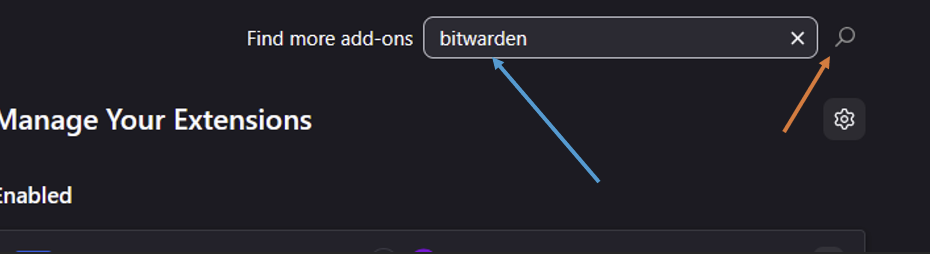
Search on the new page for Bitwarden and click the magnifier glass
Click on the Bitwarden page
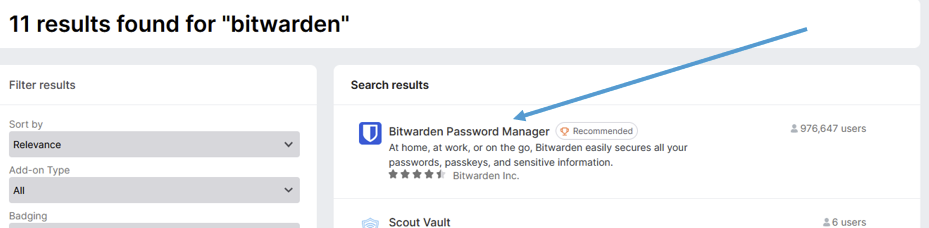
Click on 'Add to Firefox'

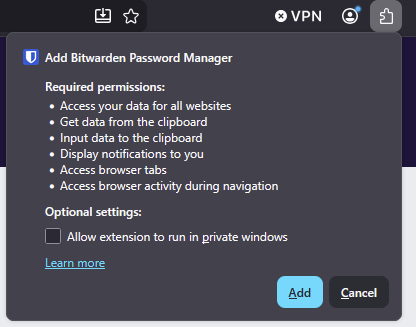
Click 'Add' on the popup
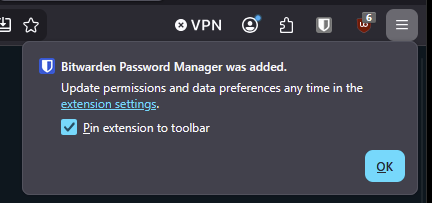
Click 'OK' to have it pinned on your browsers bar
Chrome:
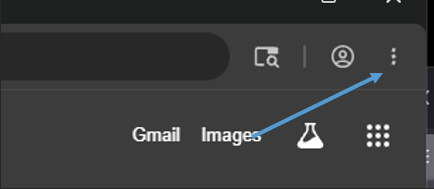
On the top right, click on the vertical 3 dots
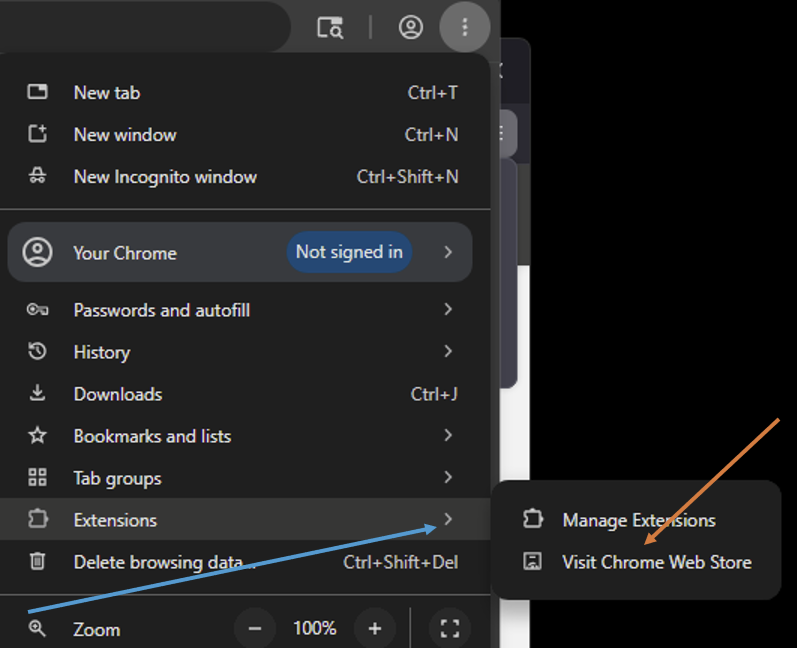
Hover Extensions and click 'Visit Chrome Web Store'
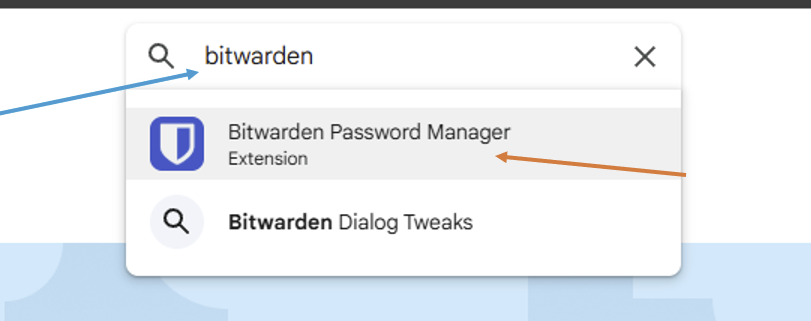
Search for Bitwarden and click on the top result
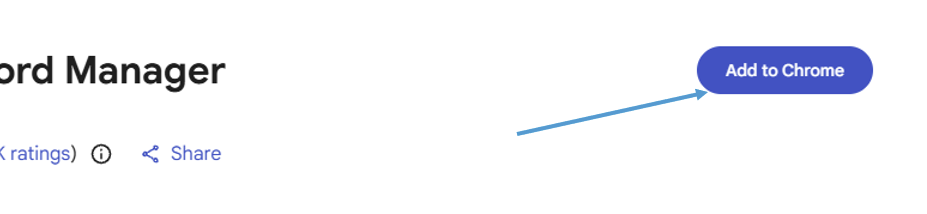
Click on 'Add to Chrome'
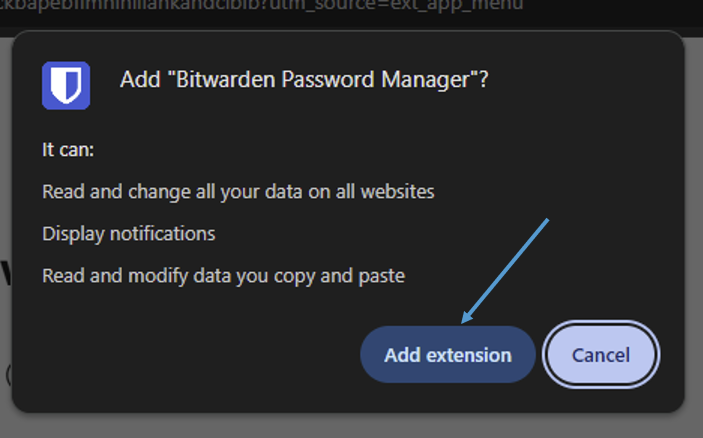
Click 'Add extension'
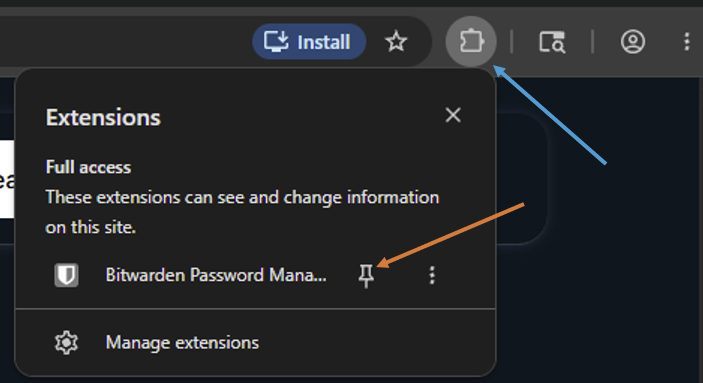
Click on the Extensions puzzle piece on the top right and then pin the extension to the bar
Adding Passwords
Log into the Bitwarden extension:
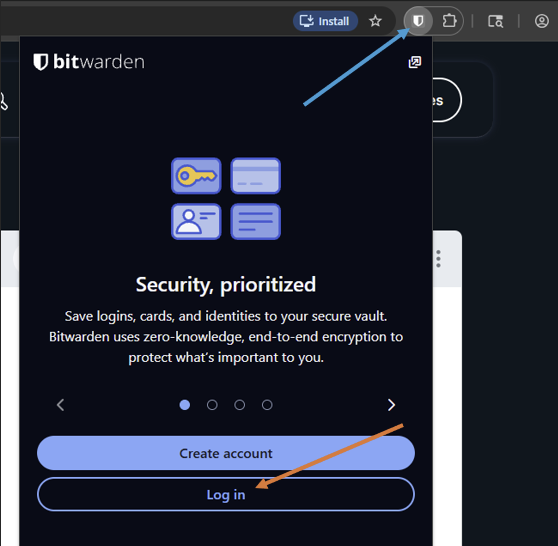
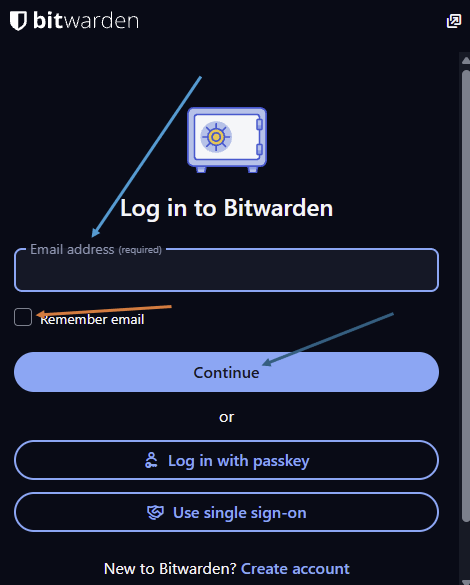
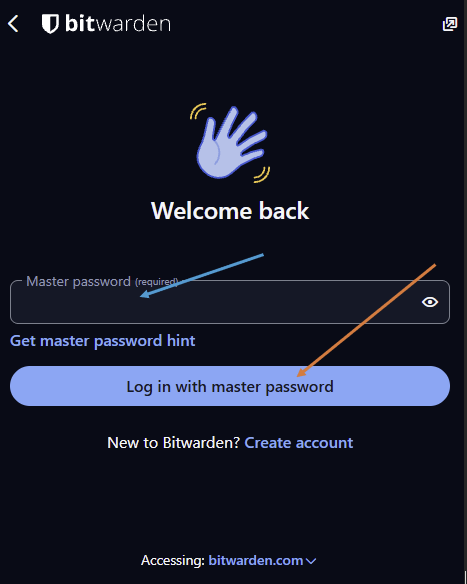
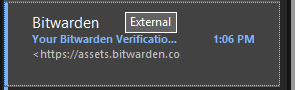
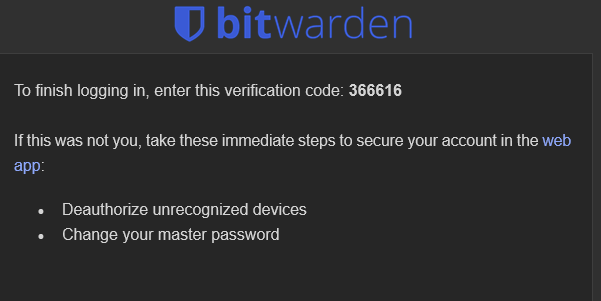
On 1st login it will send you a verification code to your email
Start a new password entry by clicking on '+ New'
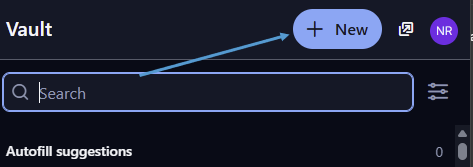
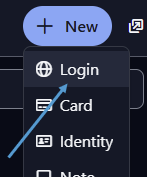
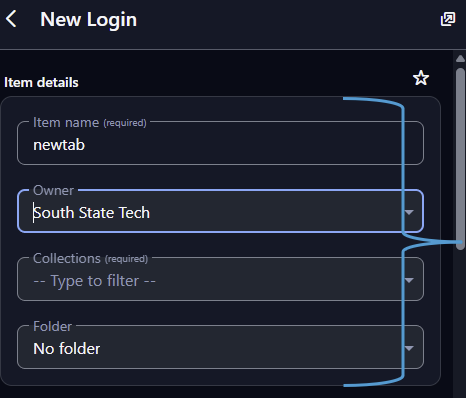
Fill out the necessary information (for personal items, keep owner as your email, for communal please change to the Company)
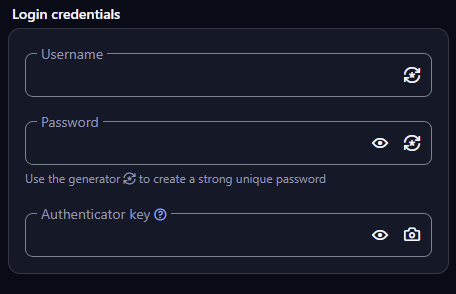
Fill out the login credentials
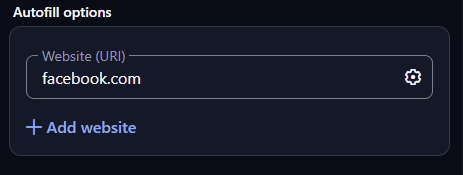
Insert the login link/url to the Autofill options
Click on Save and your password will be saved to your Vault