# Installing Bitwarden
On your browser of choice, install the Bitwarden extention:
##### **Mozilla:**
**On the top right, click your 'Extentions' puzzle piece**
**[](https://kb.southstatetech.com/uploads/images/gallery/2026-05/image.png)**
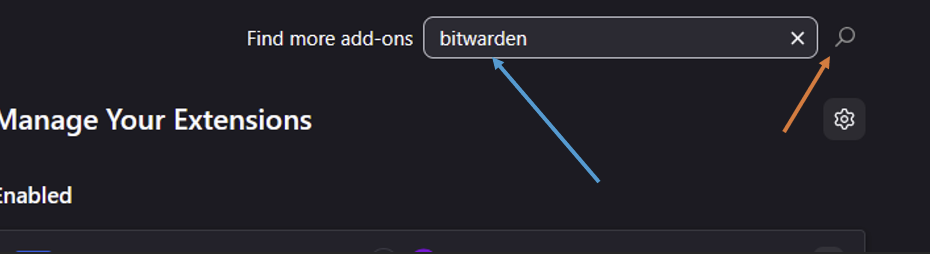
**Search on the new page for Bitwarden and click the magnifier glass**
**[](https://kb.southstatetech.com/uploads/images/gallery/2026-05/0Zdimage.png)**
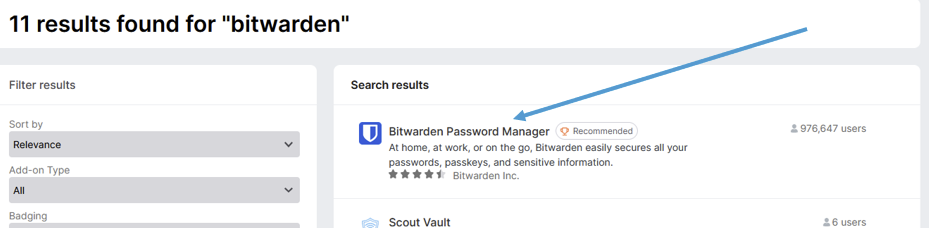
**Click on the Bitwarden page**
**[](https://kb.southstatetech.com/uploads/images/gallery/2026-05/r48image.png)**
**Click on 'Add to Firefox'**
[](https://kb.southstatetech.com/uploads/images/gallery/2026-05/H3Yimage.png)
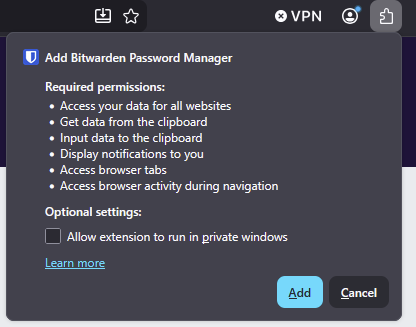
**Click 'Add' on the popup**
[](https://kb.southstatetech.com/uploads/images/gallery/2026-05/58wimage.png)
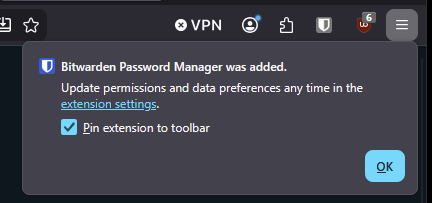
**Click 'OK' to have it pinned on your browsers bar**
[](https://kb.southstatetech.com/uploads/images/gallery/2026-05/zLJimage.png)
##### **Chrome:**
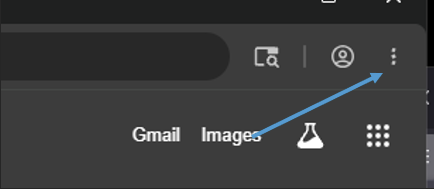
**On the top right, click on the vertical 3 dots**
[](https://kb.southstatetech.com/uploads/images/gallery/2026-05/nmMimage.png)
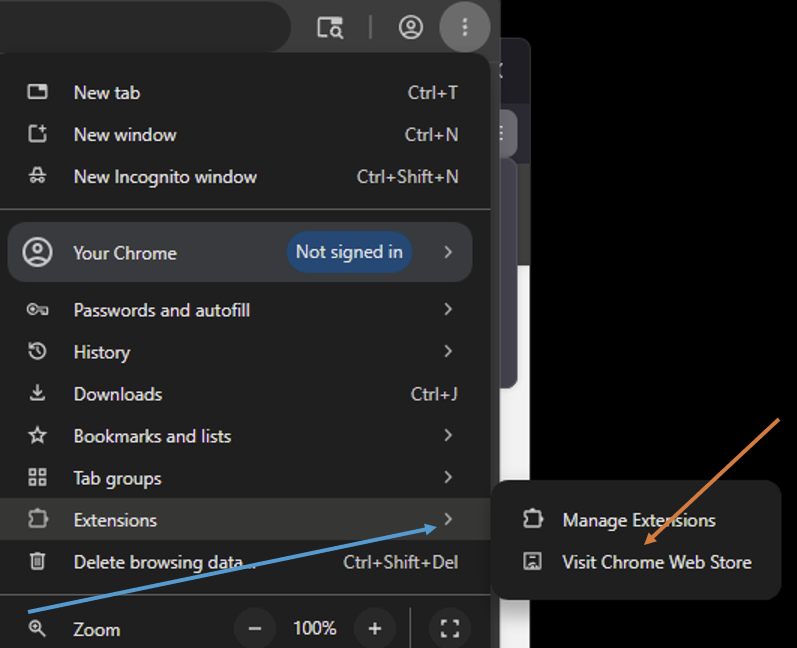
**Hover Extensions and click 'Visit Chrome Web Store'**
[](https://kb.southstatetech.com/uploads/images/gallery/2026-05/JXaimage.png)
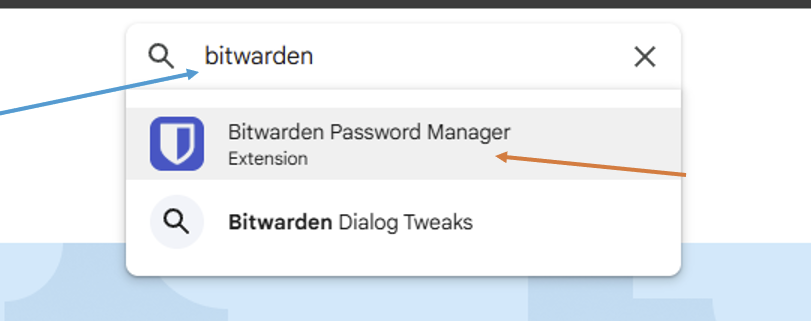
**Search for Bitwarden and click on the top result**
[](https://kb.southstatetech.com/uploads/images/gallery/2026-05/bFvimage.png)
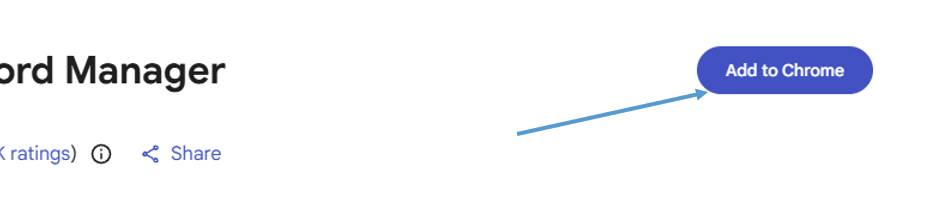
**Click on 'Add to Chrome'**
[](https://kb.southstatetech.com/uploads/images/gallery/2026-05/Pz6image.png)
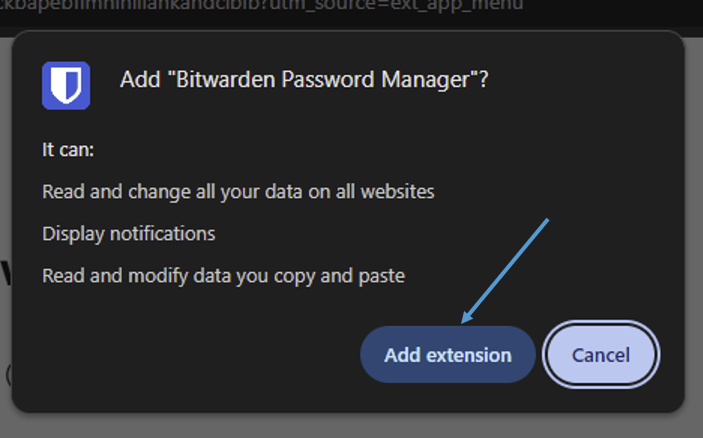
**Click 'Add extension'**
[](https://kb.southstatetech.com/uploads/images/gallery/2026-05/ujoimage.png)
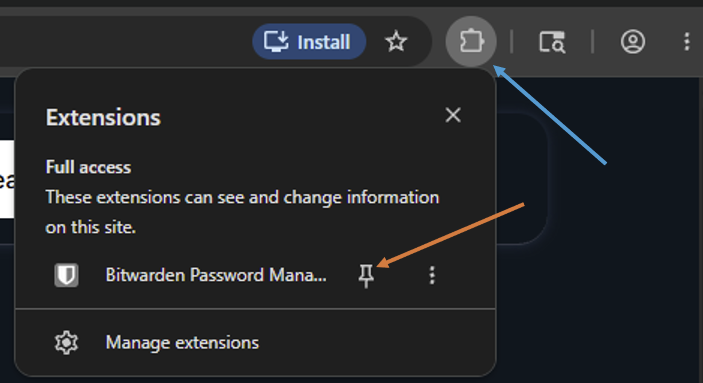
**Click on the Extensions puzzle piece on the top right and then pin the extension to the bar**
[](https://kb.southstatetech.com/uploads/images/gallery/2026-05/HRMimage.png)