Option 2: Update Permissions In OneDrive
Step 1
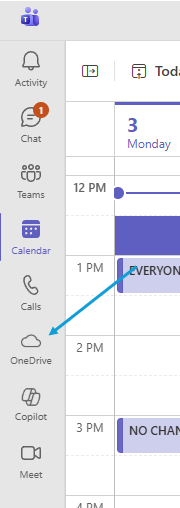
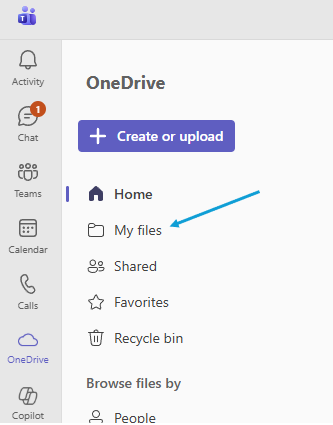
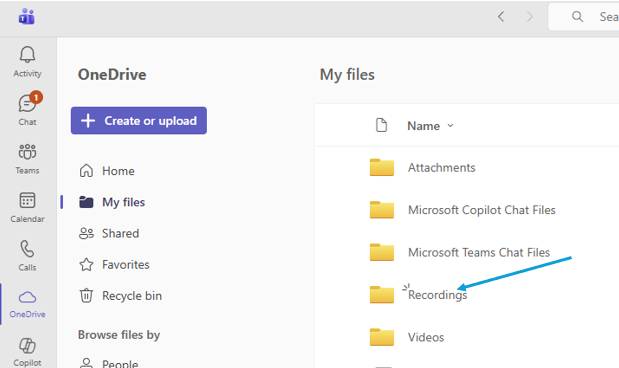
After the Meeting is complete the recording/transcript will be in your OneDrive Recordings folder
Step 2
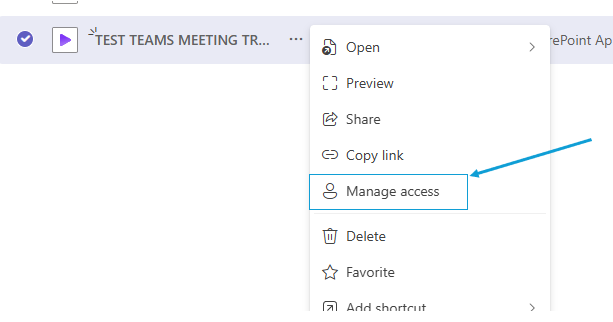
Hover over the meeting name and click on the three dots
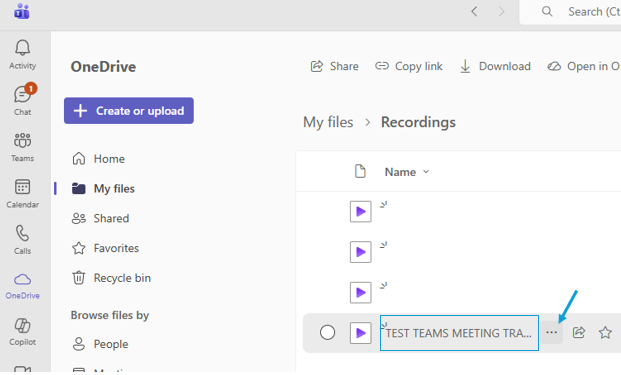
Select 'Manage Access' from the populated menu
Step 3
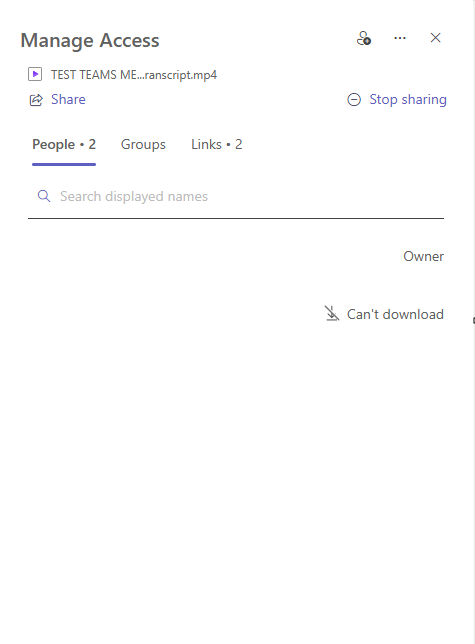
Users that have access to the Transcript will show in this menu as 'Can't Download'
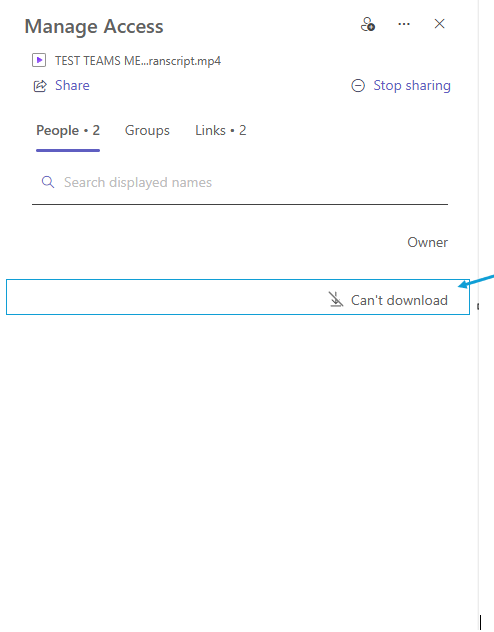
Click 'Can't Download' to change this access
Select Direct Access and update it to 'Can Edit'
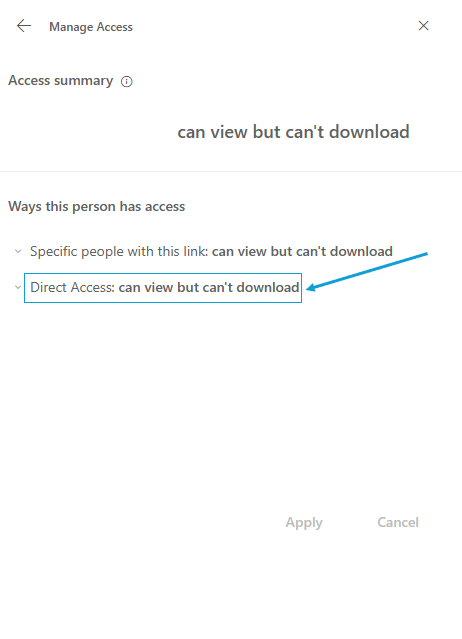
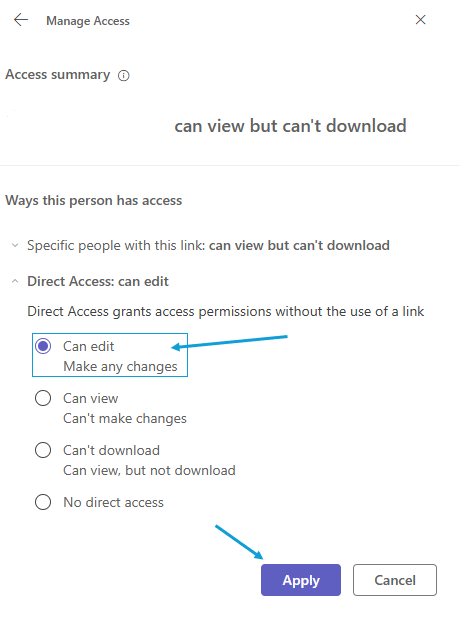 *This user now has the ability to Download the Recording or Transcription