Download Permissions - Recordings and Transcriptions
- Option 1: Adding users as Co-Orginizers to gain download permissions
- Option 2: Update Permissions In OneDrive
Option 1: Adding users as Co-Orginizers to gain download permissions
Option 1: Adding users as Co-Orginizers to gain download permissions
Step 1
Create a new meeting and invite attendees

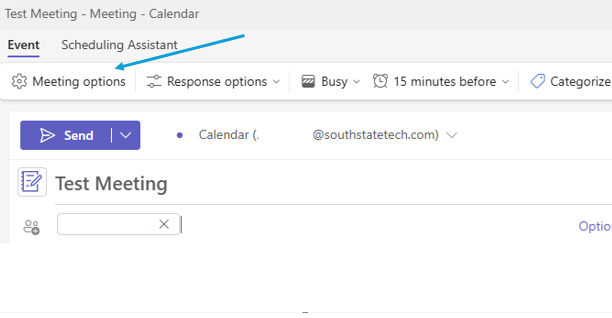
Click 'Meeting Options' at the top
Option 1: Adding users as Co-Orginizers to gain download permissions
Step 2
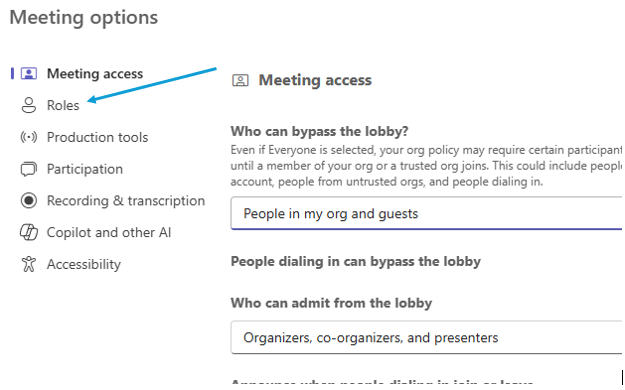
Head to 'Roles'
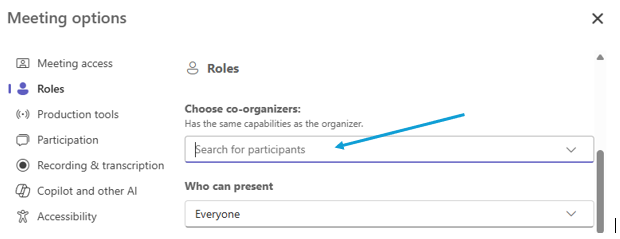
Add the attendee's as Co-Organizers for them to have Download access to Recordings and Transcriptions
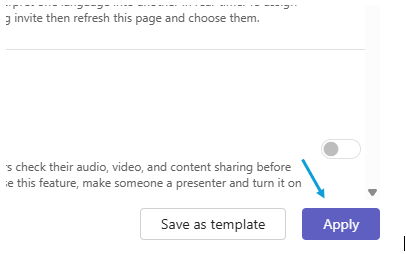
Click Apply to apply the updated settings
Option 2: Update Permissions In OneDrive
Option 2: Update Permissions In OneDrive
Step 1
After the Meeting is complete the recording/transcript will be in your OneDrive Recordings folder
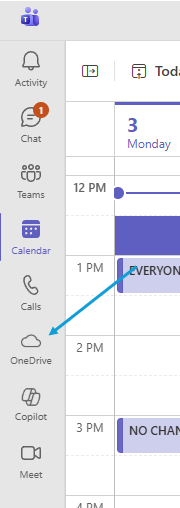
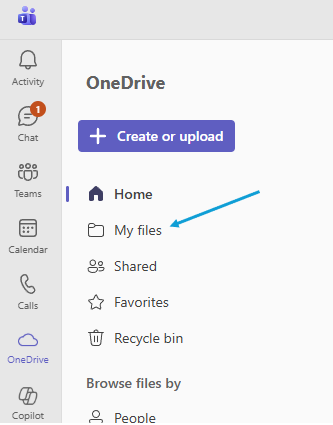
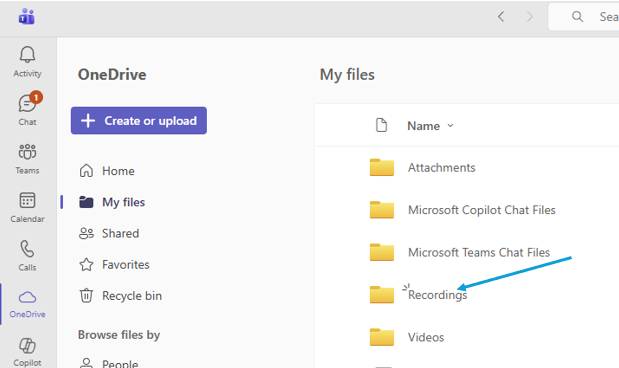
Option 2: Update Permissions In OneDrive
Step 2
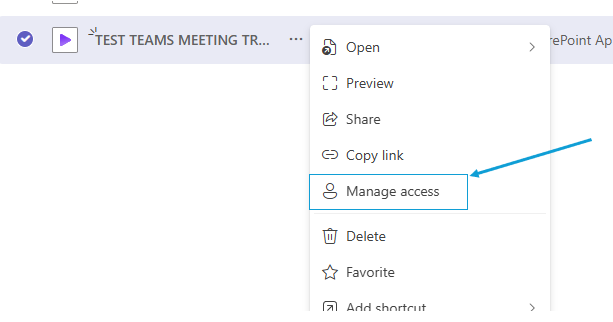
Hover over the meeting name and click on the three dots
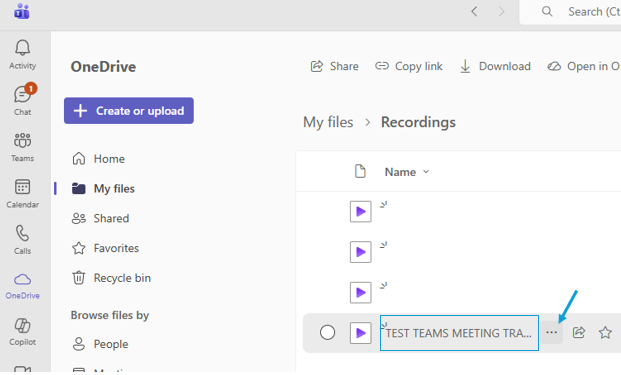
Select 'Manage Access' from the populated menu
Option 2: Update Permissions In OneDrive
Step 3
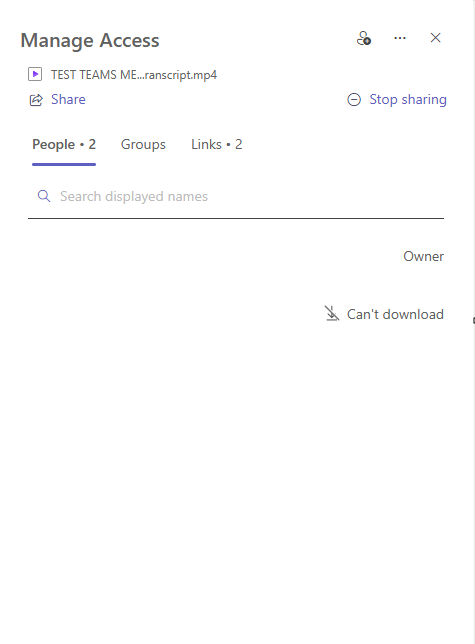
Users that have access to the Transcript will show in this menu as 'Can't Download'
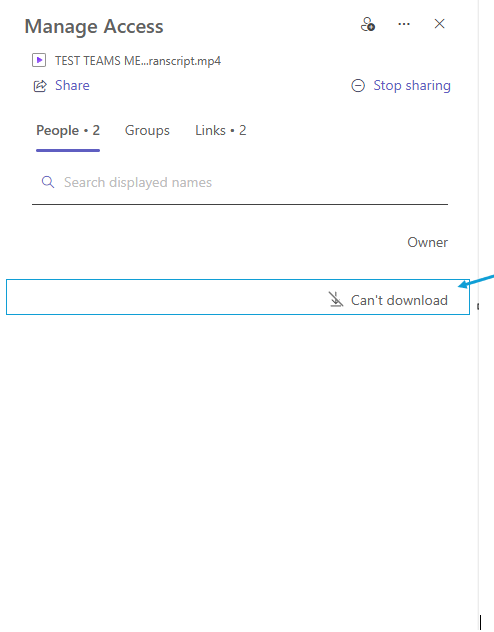
Click 'Can't Download' to change this access
Select Direct Access and update it to 'Can Edit'
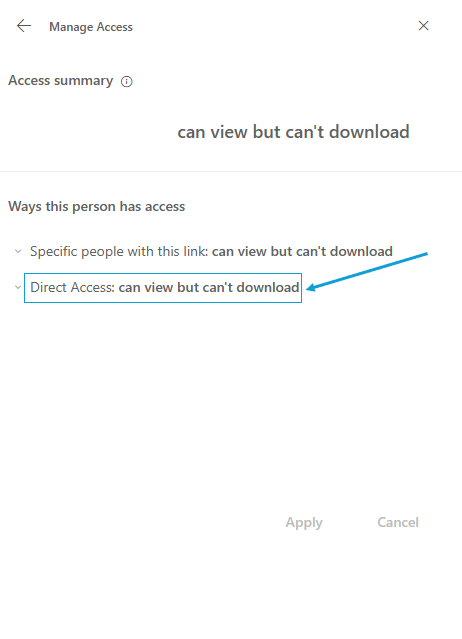
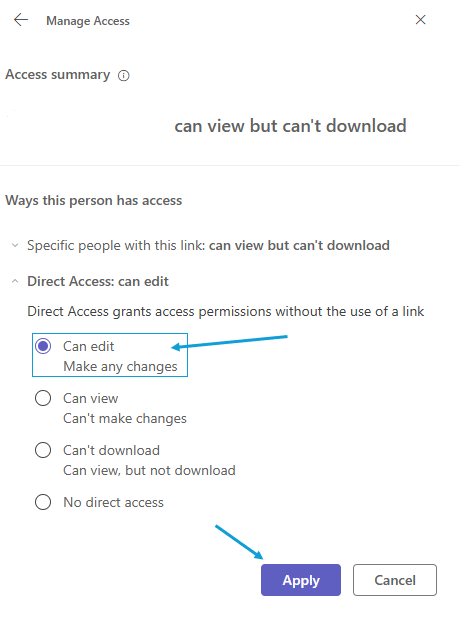 *This user now has the ability to Download the Recording or Transcription